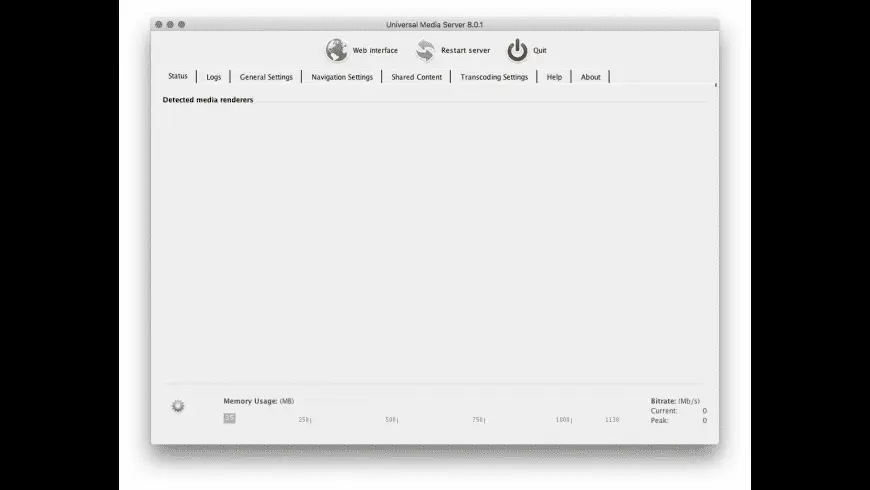
Universal Media Server Overview
Universal Media Server for mac often shortened to UMS, is a free, open-source DLNA and UPnP media server that turns your Mac into a streaming hub for your home network. It originated as a fork of PS3 Media Server and now streams to smart TVs, game consoles, Roku devices, and mobile apps, transcoding files on the fly using FFmpeg, MEncoder, tsMuxeR, and VLC-based tools. Version 15.7.0, the current public release, added folder-flattening for browsing subdirectories, automatic thumbnails for internet playlists, and Lucene-based audio search. A newer 15.8.0 build with backup/restore support is already out too, though it's available first to Patreon subscribers before a later public release. Mac downloads come as separate builds for Apple Silicon and Intel, rather than one shared installer.
Why Choose Universal Media Server for Mac
Commercial media server apps often lock features behind subscriptions or limit how many devices can connect. UMS doesn't do either, since it's fully open source and free, with no device caps or paywalled features. It also supports an unusually wide range of playback hardware, including older PS3 and Xbox 360 consoles alongside modern smart TVs, which matters if your household has a mix of older and newer streaming devices.
Two things are worth knowing specifically as a Mac user before installing. First, since UMS is written in Java, your Mac needs a Java runtime installed for it to launch; most builds handle this automatically, but it's the reason installation takes slightly longer than a typical native Mac app. Second, because UMS runs a local server to stream content, macOS will likely prompt you to allow network connections through your firewall the first time you launch it, and you'll need to approve that prompt for devices on your network to actually find and play your media.
Key Features
- DLNA and UPnP streaming to smart TVs, consoles, and mobile devices
- Real-time transcoding powered by FFmpeg, MEncoder, tsMuxeR, and VLC
- Automatic metadata lookup through TMDB, Discogs, and MusicBrainz
- Support for subtitles, including soft and hard subtitle rendering
- Multiple audio track selection for multi-language media files
- Built-in web interface for browsing and playing media from a browser
- YouTube channel and podcast support through yt-dlp integration
- Automatic device detection with optimized profiles per device
- Support for a wide range of media renderers, from older consoles to current smart TVs
- Cross-platform codebase shared across macOS, Windows, and Linux
What's New in 15.7.0 Version
Universal Media Server 15.7.0, the current public release, focuses on browsing and search improvements. Recent changes include:
- An option to flatten folder structure, so files in subdirectories appear at the top level
- Automatic thumbnails generated for internet playlists
- Lucene-based search added for finding audio files faster
- Fixed a bug where selecting a specific episode could break parent-directory browsing
- Various dependency and stability updates under the hood
A newer 15.8.0 build has also been released, adding backup and restore support, a delete-thumbnails option, and improved LG TV compatibility, though it's currently available first to Patreon subscribers ahead of its public release.
Supported macOS Versions
Universal Media Server runs on both Intel and Apple Silicon Macs, but unlike many modern Mac apps, it ships as two separate downloads rather than one universal binary an Apple Silicon (ARM64) build around 212MB, and an Intel (64-bit) build around 218MB. Since it depends on a Java runtime, performance and startup time can vary slightly depending on which Java version is installed alongside it. If playback or transcoding feels slow, checking for a Java update is often a faster fix than adjusting UMS itself.
How to Install?
Setting up Universal Media Server on your Mac takes a few extra steps compared to a typical app.
- Download the latest version of Universal Media Server for Mac.
- Open the downloaded installer package.
- Follow the on-screen setup instructions to complete installation.
- Launch Universal Media Server from your Applications folder.
- Allow the app through your Mac's firewall when prompted, so devices on your network can connect.
- Point UMS to the folders containing your videos, music, and photos.
Once set up, compatible devices on your network should detect your media server automatically.
How to Use Universal Media Server?
- Open Universal Media Server and add the folders you want to share.
- Let UMS scan your media and pull in matching metadata and artwork.
- Open a DLNA or UPnP-compatible app on your TV, console, or phone to find your server.
- Select a movie, show, or song to begin streaming or transcoding automatically.
- Use the built-in web interface if you want to browse or play media from a browser instead.
Final Verdict
Universal Media Server gives you a genuinely free, open-source alternative to paid media server software, with broad device support that covers both aging consoles and current smart TVs. The Java dependency and firewall setup add a small extra step compared to a typical native Mac app, but neither is difficult to work through. For anyone who wants full control over streaming their own media library without subscriptions or device limits, UMS remains a solid choice.
Download Universal Media Server for Mac Latest Version
Ready to turn your Mac into a media streaming hub for your whole home?
Download Universal Media Server for Mac to stream and transcode your video, music, and photo library to smart TVs, consoles, and mobile devices over DLNA and UPnP. Whether you're connecting an older game console, a modern smart TV, or several devices across a mixed home network, UMS gives you a free, open-source way to keep full control of your media without relying on paid streaming subscriptions.